

1. Get an API Key
You will need an API Key from Intelliprint to authorize requests from Klaviyo.All Intelliprint accounts can create an API key in the API Keys section of their account. API keys are displayed only once when they are created. We do not store them.In case you don’t already have an account, creating one is free and takes just a minute.
2. Create a workflow
You may need to install the free Shopify Flow app from the Shopify App Store to use this feature.
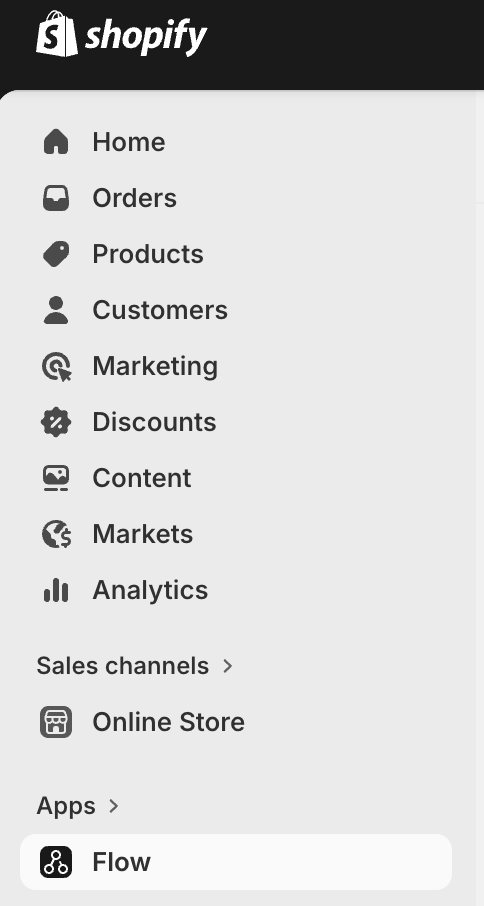
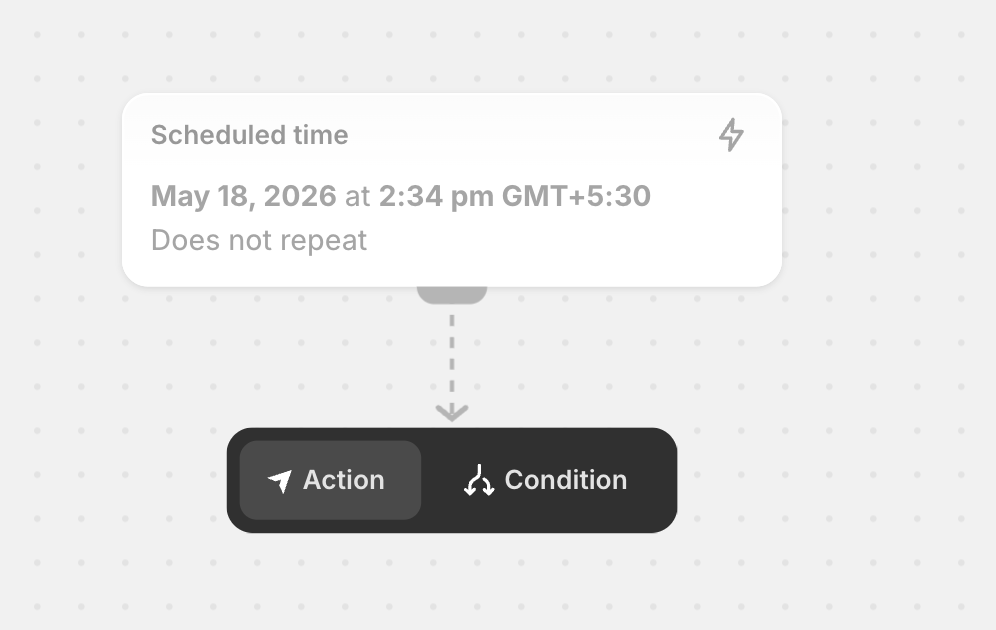
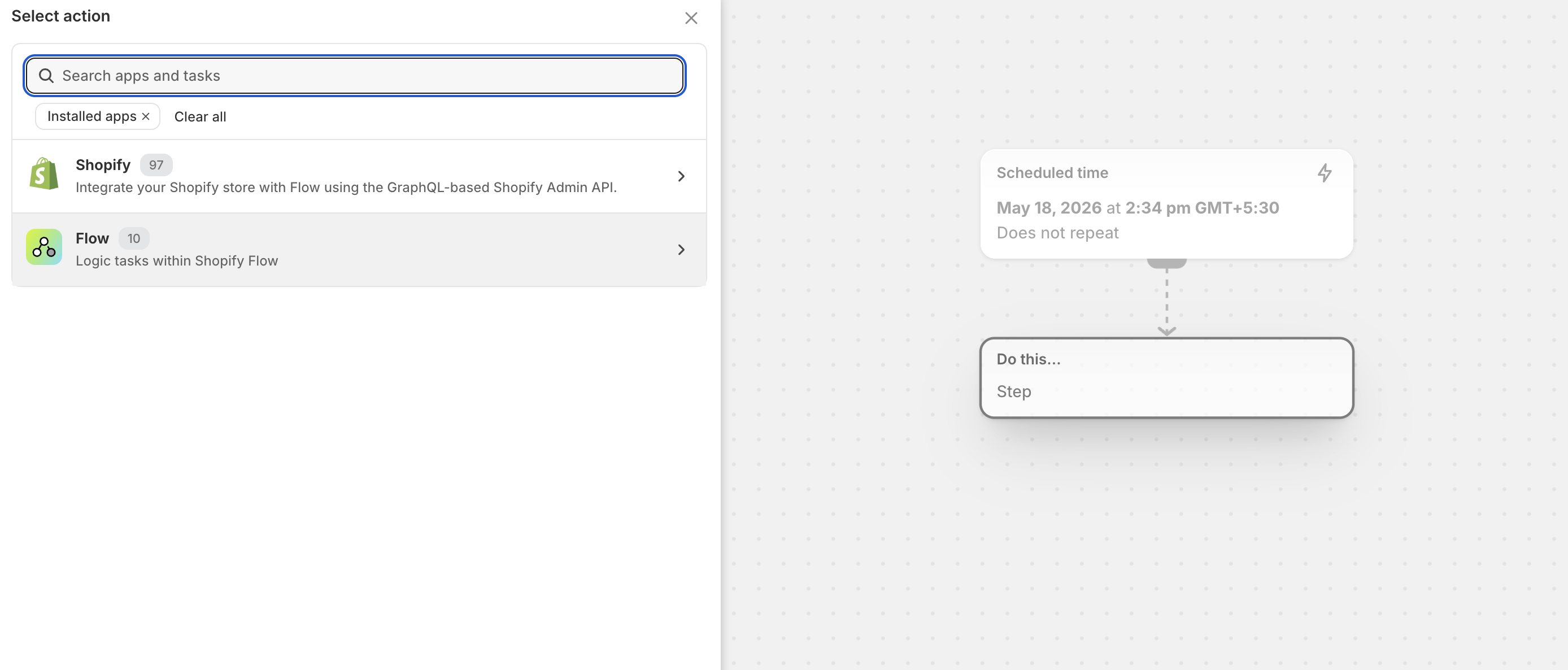
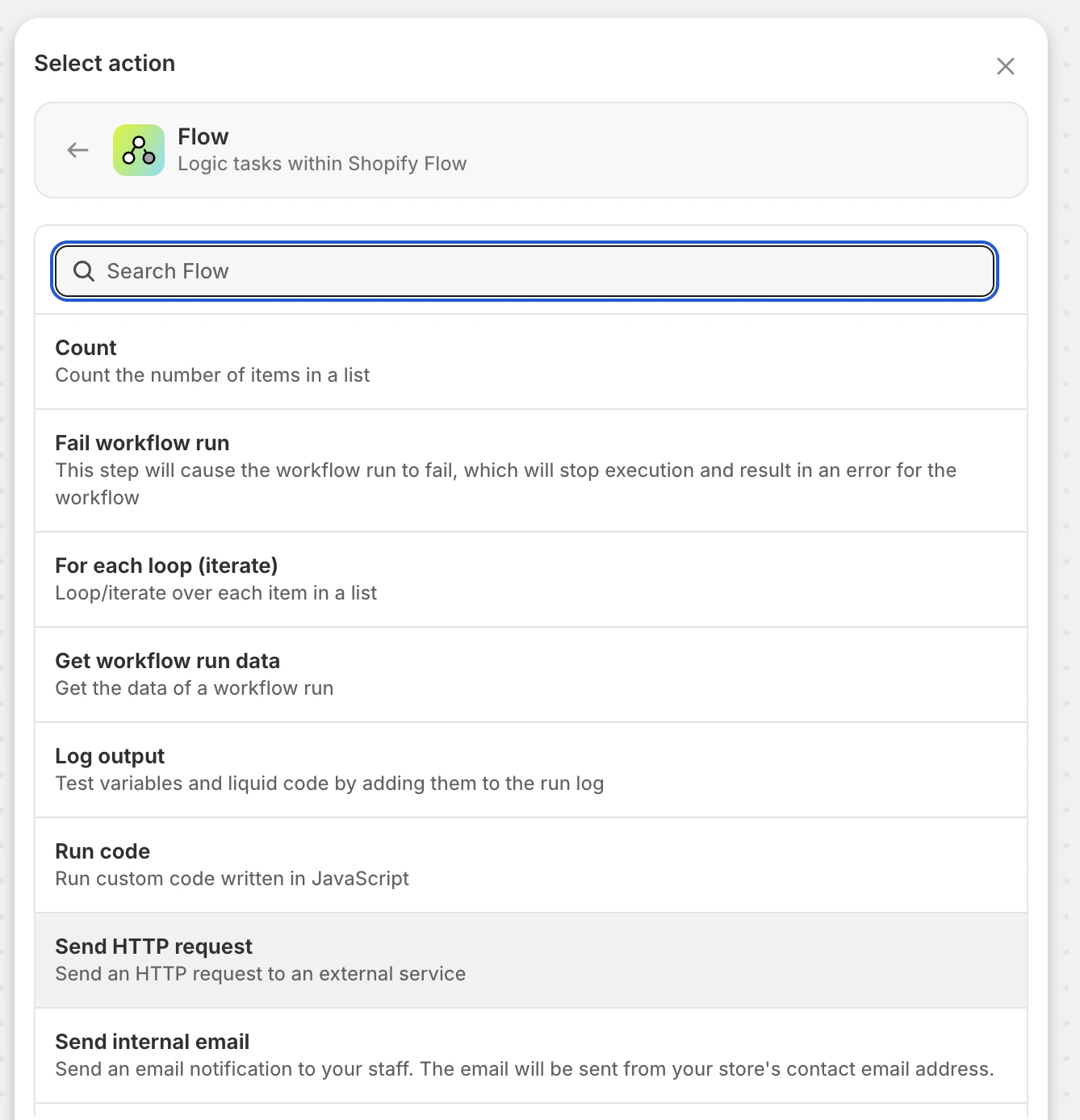
3. Configure the HTTP Request
Now configure the HTTP request like so: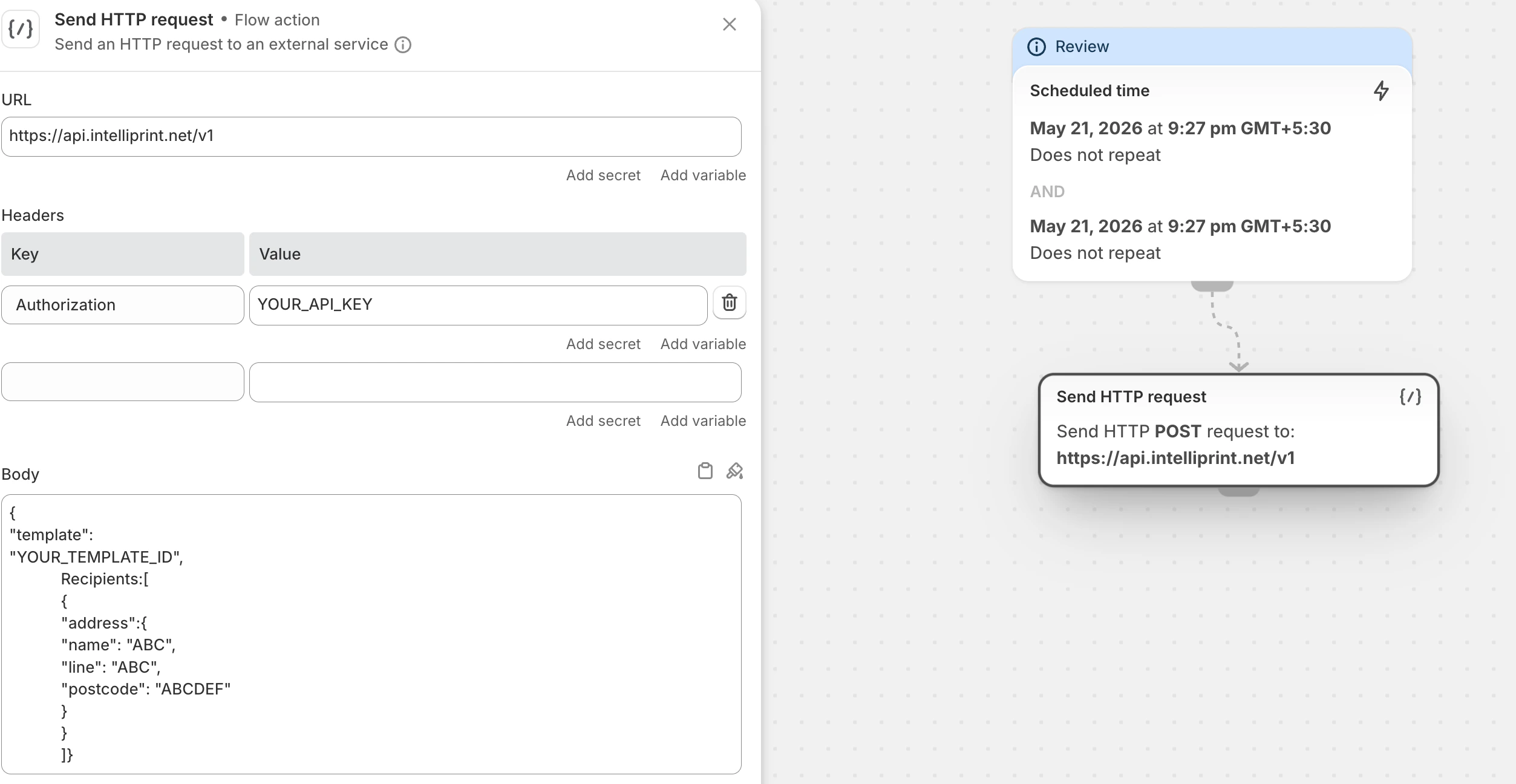
Example JSON Body
4. Save and test the workflow
Save the workflow and ensure everything is working as expected when the automation is triggered.
Ensure your Intelliprint account has sufficient balance to cover the cost of the print job or the API will return a payment error. You can also opt for pay later billing to ensure your print jobs always go through.